
To set up an Android phone for seniors, make it readable, make it safe, and make it quiet. On a Samsung Galaxy, turn on Easy mode (Settings → Display → Easy mode); on any Android, raise the font and display size.
Then set up Emergency SOS and medical info, share locations through Find Hub or Google Maps, and turn on spam call protection in the Phone app. Plan for about an hour with your parent beside you.
Galaxy phones and Pixels name things a little differently, so each step below gives both where they differ. Every path comes from Samsung’s and Google’s own help pages. Find more in our Android guides.
Before you start
- Update the phone. On a Galaxy, open Settings → Software update. On a Pixel, open Settings → System → Software updates.
- Know their PIN and Google Account password. Make sure two-step verification has a backup phone number, ideally yours too.
- Brand-new phone? Do the transfer first with our guide to setting up a new Android phone.
- Ask what’s hard for them. Small text? Accidental taps? Scam calls? Fix that first.
1. Make it easier to see and use
On a Samsung Galaxy: Easy mode
Easy mode is Samsung’s built-in simple Home screen. Samsung says it enlarges on-screen items, gives you a high contrast keyboard and helps prevent accidental touches.
- Open Settings → Display → Easy mode.
- Tap the switch to turn it on.
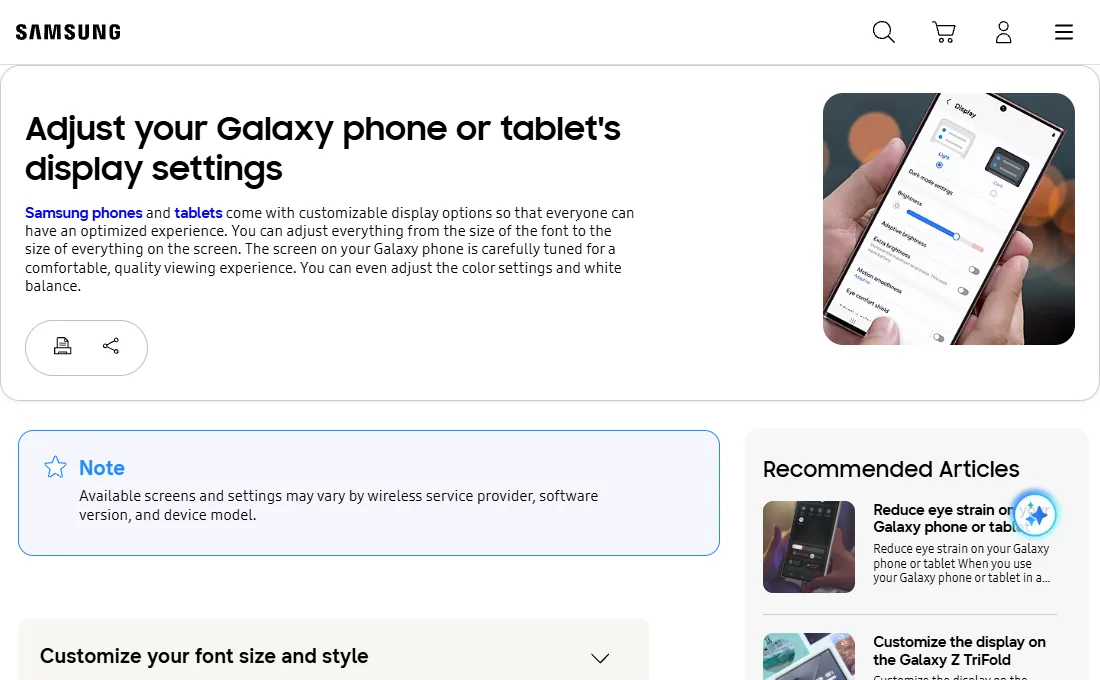
- Back in Settings → Display, open Font size and style and drag the slider up if text still looks small.
- Adjust Screen zoom in the same menu to make buttons and icons bigger as well.
- Arrange the Home screen so the Phone, Messages, Camera and Photos apps sit on the first page, with favorite contacts as shortcuts.
On a Pixel or other Android phone
- Open Settings and search for Font size. Drag the slider right.
- Search Settings for Display size and drag that slider right too. This enlarges everything, not just text.
- Under Settings → Accessibility → Display size and text, turn on Bold text if it helps.
- Remove apps they never use from the Home screen so there’s less to tap by mistake.
Pixel phones don’t have a Samsung-style Easy mode. The Play Store has “simple launcher” apps that replace the Home screen, but quality and ads vary a lot, so try the built-in settings first and read reviews carefully before installing one.
2. Set up Emergency SOS and medical info
On a Samsung Galaxy
- Open Settings → Safety and emergency.
- Tap Medical info and add conditions, allergies, medications and blood type. Samsung says first responders can see this even when the phone is locked.
- Tap Emergency contacts and add yourself and another relative. Turn on showing them on the Lock screen.
- Tap Emergency SOS and turn it on. Pressing the Side button five times in a row starts it and alerts your emergency contacts.
On a Pixel or other Android phone
- Open Settings → Safety & emergency → Emergency SOS and tap Start setup.
- Confirm the emergency number, add emergency contacts and allow location sharing.
- Open the Safety app, tap Your info → Medical information, and fill in blood type, allergies and medications.
Practice once. Have your parent press the button sequence while you watch, then cancel during the countdown so no call goes out. Knowing what the alarm sounds like makes it less scary in a real emergency.
3. Share locations (and why not Family Link)
Google’s Family Link is built for supervising children’s accounts, so it’s the wrong tool for a parent. Use regular Google location sharing instead, which works between adults and shows up in both Find Hub and Google Maps.
- On your parent’s phone, open the Find Hub app and tap Start share.
- Choose how long to share. For family, until you turn it off is usually right.
- Pick yourself from the suggested list, or tap Get link to share.
- Tap Create share. You’ll get a notification or email to accept.
Prefer Google Maps? Tap the profile picture, then Location sharing → New share. Stopping a share in one app stops it everywhere. Share both ways so it feels fair, and see how to find a lost phone for the other half of Find Hub. If you also look after grandkids’ phones, our Google Family Link guide covers that properly.
4. Block spam and scam calls
Scam calls are the biggest daily risk for many older phone owners. Both Samsung’s and Google’s Phone apps have strong filters built in.
Samsung Phone app
- Open the Phone app, tap More options (three dots) → Settings.
- Tap Caller ID and spam protection, turn on the switch at the top, and tap Agree.
- Choose Block all spam and scam calls. The gentler Only block high-risk scam calls lets more through.
- Consider Block calls from unknown numbers if most calls they want are from saved contacts.
On Galaxy phones with One UI 8.5 or later, Samsung also offers AI scam detection that warns during a call if it hears scam patterns. Phones on One UI 9 qualify.
Google Phone app (Pixel and others)
- Open the Phone app, tap More options → Settings → Caller ID and spam.
- Make sure See caller ID & spam is on.
- Turn on Filter spam calls. Filtered calls don’t ring but still appear in call history.
Before blocking unknown numbers, save the doctor, pharmacy, bank and family numbers as contacts. Otherwise important calls may never ring.
For texts and repeat callers, see our guides to blocking spam calls and stopping spam texts. Then agree on a family code word for any panicked “it’s me, I need money” call.
Quick checklist: Android phone for seniors
| Setting | Samsung Galaxy | Pixel / other Android |
|---|---|---|
| Simple Home screen | Settings → Display → Easy mode | Bigger Display size; tidy Home screen |
| Bigger text | Settings → Display → Font size and style | Search Settings for Font size |
| Emergency SOS | Settings → Safety and emergency → Emergency SOS | Settings → Safety & emergency → Emergency SOS |
| Medical info | Settings → Safety and emergency → Medical info | Safety app → Your info |
| Location sharing | Find Hub → Start share | Find Hub → Start share |
| Spam calls | Phone → Settings → Caller ID and spam protection | Phone → Settings → Caller ID and spam |
If something doesn’t work
- No Easy mode in Display settings: Samsung lists it for recent Galaxy S, Z Fold, Z Flip and A series phones. Search Settings for “Easy mode”; some older or budget models may not have it.
- Menus look different: carriers and phone makers rename items. The search bar at the top of Settings finds them.
- Location share won’t show up: both people need location turned on and to be signed in to Find Hub or Google Maps.
- Important calls get blocked: turn off Block calls from unknown numbers and rely on the spam filter alone.
Helping a parent with an iPhone instead? See how to set up an iPhone for an older parent.
FAQ
What is the best Android setting for seniors?
On a Samsung Galaxy, Easy mode does the most in one switch: bigger items, a high contrast keyboard and fewer accidental taps. On other phones, raise both Font size and Display size.
Can I use Family Link to track my elderly parent?
Family Link is designed for children’s Google Accounts. For adults, use location sharing in Find Hub or Google Maps, which your parent can see and stop at any time.
How does Emergency SOS work on Samsung?
Press the Side button five times in a row. The phone starts the SOS actions you set up, such as calling emergency services and alerting your emergency contacts with your location.
Will spam protection block real calls?
The spam filter only blocks numbers flagged as spam or scam. Blocking all unknown numbers is stricter and can catch real callers, so save important numbers first.
Do I need a special phone for seniors?
Usually not. A recent Galaxy or Pixel with these settings is easier to use and gets security updates that many basic senior phones don’t.
Sources
- Adjust your Galaxy phone or tablet's display settings (Samsung US)
- Use your Galaxy phone or tablet in emergency situations (Samsung US)
- Block spam calls with Smart Call on your Galaxy phone (Samsung US)
- Get help during an emergency with your Android phone (Android Help)
- Change font size and display size (Android Accessibility Help)
- Use caller ID & spam protection (Phone app Help)
- Find your friends and family with Find Hub (Android Help)
- Find & manage your child's location (Google For Families Help)