
To repair Windows 11 with DISM and SFC, open Command Prompt as administrator and run DISM.exe /Online /Cleanup-image /Restorehealth first, then sfc /scannow. Microsoft says to run DISM before SFC, because DISM fetches the good files that SFC uses to fix corrupted ones. Each command can take several minutes. Don’t close the window until SFC reaches 100 percent.
When Windows features stop working, you see random system errors or the PC freezes, damaged system files are a common cause. Windows 11 has two built-in repair tools for this: DISM (Deployment Image Servicing and Management) and SFC (System File Checker). Below are the exact commands in the right order, what each result means, and what to do when DISM fails. Every command comes from Microsoft’s own support article and DISM reference.
DISM commands to repair Windows 11, in order
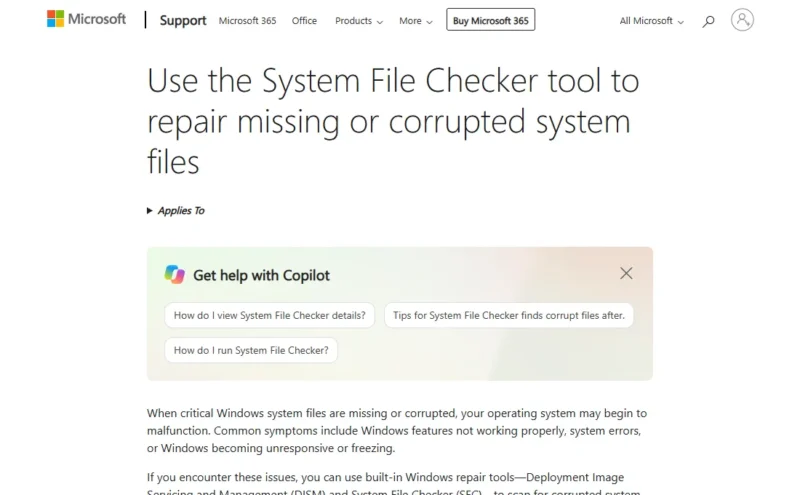
Many guides tell you to run SFC first. Microsoft’s current support article says the opposite: “You should run DISM prior to running the System File Checker.” Here’s the full sequence:
- Type cmd in the Search box, right-click Command Prompt in the results and choose Run as administrator. Allow it if Windows asks for confirmation.
- Optional quick check: type
DISM /Online /Cleanup-Image /CheckHealthand press Enter. It reports whether the image has already been flagged as corrupted and whether it can be repaired. - Run the repair: type
DISM.exe /Online /Cleanup-image /Restorehealthand press Enter. Microsoft says it may take several minutes. - When DISM finishes, type
sfc /scannowand press Enter. - Leave the window open until the verification reaches 100 percent, then read the result message (explained below).
- Restart your PC and check whether the problem is gone.
What each DISM and SFC command does
These descriptions come from Microsoft’s DISM command-line reference and sfc reference:
| Command | What it does | Repairs anything? |
|---|---|---|
DISM /Online /Cleanup-Image /CheckHealth | Checks whether the image has been flagged as corrupted by a failed process and whether that can be repaired. | No |
DISM /Online /Cleanup-Image /ScanHealth | Scans the image for component store corruption. Takes several minutes. | No |
DISM /Online /Cleanup-Image /RestoreHealth | Scans for component store corruption, then repairs it automatically. Uses Windows Update as the default source. | Yes |
sfc /scannow | Scans all protected system files and repairs files with problems when possible. | Yes |
sfc /verifyonly | Scans protected system files without repairing them. | No |
In short: CheckHealth and ScanHealth only tell you if something is wrong. RestoreHealth fixes the Windows component store, and SFC then uses that store to fix the actual system files.
What the sfc /scannow results mean
SFC ends with one of four messages. Here’s what Microsoft says to do for each:
| Message | What to do |
|---|---|
| Windows Resource Protection did not find any integrity violations. | Nothing. You don’t have missing or corrupted system files, so look for another cause. |
| Windows Resource Protection found corrupt files and successfully repaired them. | Done. Restart your PC. |
| Windows Resource Protection found corrupt files but was unable to fix some of them. | Check the log (next section) to see which files failed, then try the DISM source fix below. |
| Windows Resource Protection could not perform the requested operation. | Run the SFC scan in Safe Mode, and make sure the PendingDeletes and PendingRenames folders exist under C:\Windows\WinSxS\Temp. |
How to see which files SFC couldn’t fix
Microsoft’s article gives a one-line command that copies SFC’s entries from the CBS log into a text file on your desktop. Run it in the same administrator Command Prompt:
findstr /c:"[SR]" %windir%\Logs\CBS\CBS.log >"%userprofile%\Desktop\sfcdetails.txt"
Add Being Tricky on Google:
Open sfcdetails.txt on your desktop. It includes every SFC run on that PC, so check the date and time to find the latest one. Lines that say “Cannot repair member file” name the files that are still broken.
What to do if DISM RestoreHealth fails
DISM downloads replacement files from Windows Update by default. If Windows Update itself is broken, DISM can’t get those files. Microsoft’s fix is to point DISM at another copy of Windows, such as Windows installation media:
- Connect Windows installation media, such as a USB drive, or use another source Microsoft lists, such as a mounted Windows image or a shared folder from a working Windows PC.
- Note the path to its Windows folder or its sources\SxS folder. Microsoft’s examples include c:\test\mount\windows and z:\sources\SxS.
- Run
DISM.exe /Online /Cleanup-Image /RestoreHealth /Source:C:\RepairSource\Windows /LimitAccess, replacing C:\RepairSource\Windows with your path. - Run
sfc /scannowagain when DISM finishes.
/LimitAccess stops DISM from trying Windows Update. Microsoft’s repair source guide adds two rules: use original release media rather than refreshed media, and make sure the source is patched to at least the same cumulative update as your PC. If your PC is newer than the source, the repair may fail because it needs files the source doesn’t have.
Don’t confuse repair with cleanup. DISM /Online /Cleanup-Image /StartComponentCleanup /ResetBase shrinks the component store, but Microsoft warns that installed updates can’t be uninstalled after you use /ResetBase. It doesn’t repair anything, so skip it when you’re troubleshooting.
If DISM and SFC don’t fix Windows 11
Microsoft’s recovery options page lists the next steps from least to most disruptive when your PC starts but something isn’t right. Back up your files first; our guide to backing up a Windows PC shows how.
- Run a troubleshooter: Settings > System > Troubleshoot > Other troubleshooters.
- Reinstall Windows (Windows 11, version 22H2 or later): reinstalls your current version without affecting your files, apps or settings.
- Uninstall a recent Windows update if the trouble started right after one.
- Reset this PC: reinstalls Windows from scratch. You can keep your personal files or remove everything.
If your PC is simply slow rather than broken, start with our Windows 11 slow fixes and the Windows 11 settings worth changing instead.
Frequently asked questions
Should I run SFC or DISM first?
DISM first. Microsoft’s support article says DISM provides the files needed to repair corrupted files, so run DISM.exe /Online /Cleanup-image /Restorehealth before sfc /scannow.
Do DISM and SFC delete my files?
Microsoft describes them as tools that repair Windows system files and the component store. They aren’t among the recovery options Microsoft warns can remove personal files, such as Reset this PC or Cloud rebuild.
How long does DISM RestoreHealth take?
Microsoft only says it may take several minutes. Let it finish and don’t close the window.
What’s the difference between CheckHealth and ScanHealth?
CheckHealth looks for corruption that a failed process has already flagged, so it’s quick. ScanHealth actually scans the component store and takes several minutes. Neither one repairs anything; RestoreHealth does.
Do I need to be an administrator?
Yes. Microsoft’s sfc reference says you must be logged on as a member of the Administrators group, and both tools need an elevated Command Prompt.