
On November 20, 2026, OpenAI started rolling out ChatGPT Space to Plus subscribers worldwide who are 18 or older. Space is a new home for pages, presentations and uploaded files that you can write with ChatGPT and share with other people. It replaces Library in the sidebar. To try it, open Space in the ChatGPT sidebar. If it isn’t there, update the desktop app or check back later, because the rollout is gradual.
What happened
OpenAI’s ChatGPT release notes for November 20, 2026 say Space is “rolling out globally to Plus users ages 18 and older.” Before this, Space was available to eligible Pro, Business and Enterprise users. Plus subscribers now get the same place to create pages and presentations, invite people to work on them, and keep related files together.
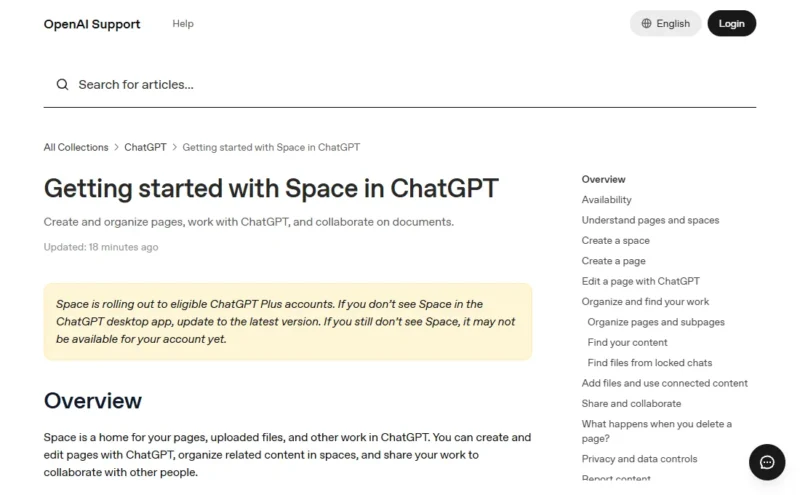
According to OpenAI’s help article Getting started with Space in ChatGPT, a page is an editable document, like a project brief, meeting notes or a research summary. A space groups related pages, folders and files. Everyone gets a personal space, and you can make more for a topic or a team. Pages can include charts, trackers and interactive tools that ChatGPT builds for you.
Add Being Tricky on Google:
The release notes also say you can set pages and slides to update automatically from your connected apps and tools. The help article notes that Slides is still rolling out to eligible accounts that have Space, and Sheets is listed as coming soon.
Who gets it
- ChatGPT Plus subscribers 18 and older, rolling out gradually around the world, including the US.
- Pro, Business and Enterprise users who already had it. In company workspaces, your admin’s sharing settings decide what you can share.
- Not Free users. People on the free plan can’t open shared pages or presentations, and there are no public links.
If you’re deciding whether Plus is worth it for features like this, our ChatGPT Free vs Plus comparison and our roundup of AI subscription prices can help.
How to start using Space
- Open ChatGPT on the web or in the desktop app. If you use the desktop app, update it to the latest version first.
- Click Space in the sidebar. It replaces Library. Your Projects stay separate.
- Ask ChatGPT to make a space, for example: “Create a space named Holiday trip.”
- Ask for a page and name the space it goes in, for example: “Create a packing list page in Holiday trip with a checklist for each person.”
- Open the page to edit the text yourself, or ask ChatGPT for a change like “Shorten the introduction and keep the checklist.”
You can also turn an existing chat into a page. Open the conversation and ask something like “Create a page from this conversation with the goals, decisions and next steps.” To give feedback on one part of a page, select the text and add a comment. Use the page’s chat for bigger changes.
One handy detail from OpenAI’s help article: if you hit your Plus message limit, you can still edit a page by hand.
How to share a page
- Open the page and select Share.
- Choose who to share it with and whether they can view or edit.
- People with edit access can work on the page with you in real time. Each person uses their own ChatGPT to help.
Subpages inherit access from their parent page, so sharing a parent also shares what’s inside it. To remove someone, check how they got access. Removing a direct invite doesn’t remove access they get from a parent page or the whole space.
Using Space on your phone
OpenAI’s release notes say Space works on the web, the desktop app, and iOS and Android. The help article is more specific: you create and edit pages on the web or desktop app, and you can also edit pages on iOS and Android. On mobile, you can find, read and share pages and move between pages and subpages. If you can’t edit a page on your phone, try the web version.
Privacy points to know before you share
- Anything written on a page is visible to everyone who can view it. If ChatGPT pulls in personal details from Memory while writing, those details become readable to viewers.
- Each collaborator’s own Memory and training settings apply when their ChatGPT reads the page. OpenAI says your contributions may be used for training through a collaborator who has training turned on, even if you turned it off.
- Sharing a page doesn’t give anyone access to your private chats or your ChatGPT Memory.
- Deleting a page moves it and all its subpages to Trash, including subpages owned by other people.
For a walkthrough of the controls, see our guide to AI privacy settings.
If you don’t see Space yet
- Update the ChatGPT desktop app to the latest version.
- Check that you’re signed in to a Plus account and that you’re 18 or older.
- Check back later. OpenAI says that if you still don’t see Space after updating, it may not be available for your account yet.
OpenAI’s notes don’t describe a way to turn Space off. For accounts that get it, Space simply replaces Library as the home for your uploaded files, and your Projects are unchanged.
Our take
Space turns ChatGPT from a chat window into something closer to a shared notebook. For Plus users, the biggest change is being able to keep a living document, like a trip plan or a study guide, and invite someone else to edit it. Just remember that the people you invite also need a paid plan with Space, and that whatever lands on a shared page is visible to all of them.
FAQ
Is ChatGPT Space free?
No. Space is for paid plans. As of November 20, 2026 it is rolling out to Plus users 18 and older, and it was already available to eligible Pro, Business and Enterprise users. Free users can’t create content in Space or open pages that others share.
What happened to my ChatGPT Library?
For accounts with Space, Space takes the place of Library as the home for your pages and uploaded files. Its Images view separates Your creations from Uploads. Projects stay separate, so your project chats, files and instructions are where they were.
Can I share a ChatGPT page with someone on the free plan?
No. OpenAI says the person opening a shared page needs view permission and must be signed in to a Plus, Pro, Business or Enterprise account with Space access. Public links aren’t available, so you can’t post a page openly on the web.
Does Space replace ChatGPT Projects?
No. Projects still organize your chats, files and project instructions. Space is for pages, slides and files that you want to keep, organize and share. Creating a space does not change or replace any of your existing Projects.