
To use Create My Widget on a Pixel, touch and hold an empty space on your Home screen, tap Widgets, then tap Create. Type what you want the widget to show, such as “Countdown to my vacation on July 15,” tap Send, check the preview and tap + Add. Google says it works on Pixel 10 and newer phones (not the Pixel 10a), for users 18 or older, in English, in the US, UK, Canada, Australia and India.
Create My Widget is Google’s AI widget builder. Instead of hunting for an app that happens to have the widget you want, you describe it in plain words and Gemini builds it. Google added it in the November 2026 Pixel Drop, and it’s back in the tech news this week as more Pixel owners go looking for the Create button. This guide covers who can use it, how to create and edit a widget, and what to check if the option is missing. Everything here comes from Google’s own help pages, checked on November 28, 2026.
What is Create My Widget on Pixel?
Google’s Pixel Phone Help describes Create My Widget as an AI-powered way to create and customize interactive widgets on your Pixel Home screen. Google’s own examples include countdowns to important dates, sports scores and weather forecasts.
In its November Pixel Drop post, Google gave a few more ideas: a tracker to follow your monthly spending, a game day widget with your team colors, or a getaway countdown that automatically pulls in flight and reservation details. The feature is part of Gemini Intelligence, which Google says is now available on Pixel 10 devices. Google also says custom widgets are coming soon to Pixel Watch 4 and Pixel Watch 5.
Which Pixel phones get Create My Widget?
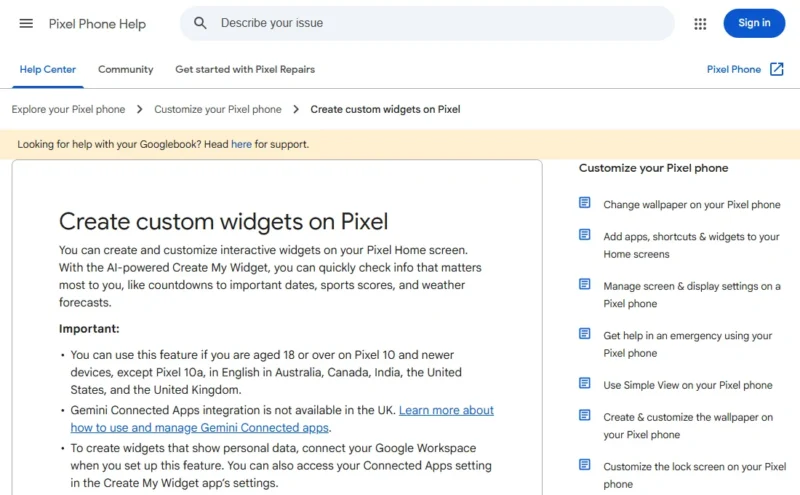
This is where most people get stuck. Here are Google’s requirements from the Pixel help page in one place:
| Requirement | What Google says |
|---|---|
| Phone | Pixel 10 and newer devices, except Pixel 10a |
| Age | 18 or over |
| Language | English |
| Countries | United States, United Kingdom, Canada, Australia and India |
| Personal data (calendar, email and so on) | Connect your Google Workspace when you set up the feature. Gemini Connected Apps integration is not available in the UK. |
| Cost | Some features may require a subscription for higher usage |
So if you have a Pixel 9 or older, a Pixel 10a, or a non-Pixel Android phone, Google’s help page doesn’t list your device. Google also offers Create My Widget on Googlebook laptops, in English in the same five countries.
How to create a custom widget from a prompt
This is the “describe it and Gemini builds it” route. The steps are from Google’s Create custom widgets on Pixel help article:
- On your Home screen, touch and hold an empty space.
- Tap Widgets, then Create.
- In the text box, tap Describe your widget.
- Type what you want the widget to display and tap Send. Google’s examples are “Show me the next soccer game” and “Countdown to my vacation on July 15.”
- Review the preview and tap + Add.
If the widget needs device or app data to work, your Pixel asks first. Google says to tap Allow to let the widget access the data it needs.
How to create a widget from a template
Not sure what to ask for? Start from one of Google’s ready-made ideas instead:
- Touch and hold an empty space on your Home screen.
- Tap Widgets, then Create.
- Pick a category or suggestion, such as Important dates, Sports & fitness or Finance.
- Optional: change the prompt or template details.
- Tap Add to place the widget on your Home screen.
How to edit, resize or remove a custom widget
You don’t have to get the prompt right the first time. Google gives you two places to make changes.
Before you add it: on the preview screen, tap Edit, type your changes, tap Send to update the preview, then tap + Add when you’re happy.
After it’s on your Home screen: touch and hold the custom widget and tap Edit. On the “Edit your widget” screen, type what you want changed and tap Send.
Add Being Tricky on Google:
To resize it, Google’s Home screen help says to touch and hold the widget, then lift your finger. If it can be resized, you’ll see an outline with dots on the sides. Drag the dots, then tap outside the widget. To remove it, touch and hold the widget and drag it up to Remove.
Tips for writing a better widget prompt
Google’s Googlebook version of the help page has some prompt tips that apply just as well on a phone:
- Be specific. Name the location, team, currency or timeframe. Google’s examples: “pollen count in my location” and “Real Madrid fixtures.”
- Fix the look in the preview. Use the Edit button to tweak colors and shapes before you add the widget.
- Add to it instead of starting over. Ask for new details in an edit rather than deleting the widget and making a new one.
- Double-check the numbers. Google’s Pixel help says to check custom widget responses to make sure they are correct, so don’t rely on an AI widget alone for anything like a flight time or a bill due date.
Create My Widget is missing? Try these fixes
If you tap Widgets and there’s no Create option, work through this list:
- Check that your phone qualifies. It must be a Pixel 10 or newer (not the 10a), set to English, in one of the five supported countries, on an account for someone 18 or older.
- Update your phone. Google says the November Pixel Drop rolls out over several weeks, and its Pixel update page notes that it may take a few weeks for an update to reach your device. To check now, open Settings > System > Software update and follow the steps on screen.
- Join the beta if you can’t wait. Google runs a Create My Widget testing program on Google Play that gives testers an unreleased version of the app. Google warns that testing versions may be unstable and that some usage data is shared with the developer. Android Authority reported on November 16 that Google pointed eligible Pixel owners to this beta, and that it worked even before the November update arrived.
- Personal info not showing? Widgets that use your personal data need Google Workspace connected. You can manage this from Connected Apps in the Create My Widget app’s settings. This part isn’t available in the UK.
Privacy note: a widget that shows your calendar, email or trips works by connecting Gemini to your Google apps. If you’d rather keep that off, skip the Workspace connection, or see our guide to checking which apps are connected to your Google account.
More Gemini features worth trying
If you like Create My Widget, our guides on how to use Gemini on Android and texting Gemini from Google Messages or iMessage cover more of what Google’s assistant can do on your phone.
Frequently asked questions
Does Create My Widget work on Pixel 9?
Not according to Google’s help page, which lists Pixel 10 and newer devices, except the Pixel 10a.
Is Create My Widget free?
Google’s help page doesn’t list a price for it, but notes that some features may require a subscription for higher usage.
Where is Create My Widget on my Pixel?
It’s in the widget picker. Touch and hold an empty space on your Home screen, then tap Widgets, then Create. If Create isn’t there, check that your phone qualifies and is up to date.
Can I get Create My Widget from the Play Store?
Google runs a Create My Widget testing program on Google Play for an unreleased version of the app. It still only works on phones that meet Google’s requirements.
Is Create My Widget coming to Pixel Watch?
Google’s November Pixel Drop post says custom widgets are coming soon to Pixel Watch 4 and Pixel Watch 5. It didn’t give a date.