
To show calendar events on a Samsung lock screen, touch and hold an empty spot on the lock screen, tap Widgets (or Add widgets), pick the Calendar widget and tap Done. To see your events with the screen off too, turn on Settings > Lock screen and AOD > Always On Display. Samsung says widgets you add to the lock screen appear on the Always On Display screen automatically.
Seeing your next meeting or pickup without unlocking your Galaxy phone saves a lot of taps. Samsung gives you three ways to do it: a lock screen widget, an events clock style for the lock screen and Always On Display, and the Now brief on newer phones. The steps below come from Samsung’s own support pages and its Always On Display listing in the Galaxy Store, checked on November 28, 2026. Menu names can differ a little between One UI versions and carriers.
Three ways to show calendar events on the lock screen
| Method | What you see | Shows with the screen off? | Needs |
|---|---|---|---|
| Calendar widget | Your upcoming events in a small card under the clock | Yes, if Always On Display is on | One UI 6.1 or later |
| Calendar or events clock style | The clock itself shows a calendar or your events | Yes, AOD uses the same clock style | The Always On Display app with Calendar permission |
| Now brief in the Now bar | A daily brief that can include upcoming events | The Now bar can show on AOD | Select phones with Android 15 and One UI 7 or later, plus a screen lock |
How to add the Calendar widget to your Samsung lock screen
Samsung’s US support page says lock screen widgets let you view the day’s schedule without unlocking your phone. Its Australian guide says the feature needs One UI 6.1 or later. Here’s how to add one:
- Lock your phone, then wake the screen so you see the lock screen.
- Touch and hold an empty area of the lock screen.
- Tap Widgets (on some versions it says + Widgets or Add widgets).
- Swipe up through the list and pick Calendar, then choose the widget option you want. Samsung notes the options vary by widget.
- To move a widget, touch and hold it and drag it next to the others. To remove one, tap the red minus icon.
- Tap Done to save.
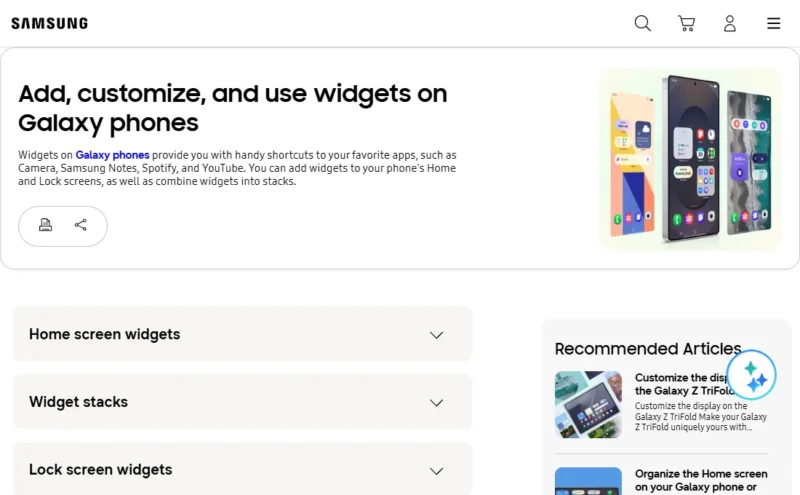
Samsung’s guide for One UI 7 and later says you can add one or two widgets to the lock screen and AOD, so make the Calendar widget one of them. Once it’s saved, tap the widget on the lock screen and swipe up to open the Calendar app.
You can also get there from Settings. Samsung’s Always On Display listing gives the route as Settings > Wallpaper and style > lock screen preview (left) > Add widget.
How to see your events when the screen is off
This is the part most people miss. The widget lives on the lock screen, but it only shows with the screen off when Always On Display (AOD) is on.
- Open Settings and tap Lock screen and AOD.
- Tap Always On Display and turn on the switch at the top.
- Tap When to show and pick how it appears: all the time, on a schedule, or only when you tap the screen.
Samsung says the widgets you added to the lock screen then appear on the Always On Display screen. To open one from AOD, double tap the widget and swipe up.
How to use a calendar or events clock style
If you’d rather not use a widget, you can change the clock itself. Samsung’s Galaxy Store listing for Always On Display says the lock screen and AOD share clock styles, including calendar and events.
- Open Settings > Wallpaper and style.
- Tap the lock screen preview on the left, then tap the clock area.
- Pick the calendar or events clock style, adjust the font, color and size, and save.
Because AOD uses the same clock style, your events also show on the screen-off display. Samsung notes that some features aren’t available on every model.
How to add events to the Now brief (One UI 7 and later)
On select phones running Android 15 with One UI 7 or later, the Now brief shows up in the Now bar at the bottom of the lock screen. Samsung says it can highlight upcoming events. A screen lock must be on for the Now bar to work.
- Open Settings > Galaxy AI > Now brief.
- Tap Content to include and turn on Events and tasks.
- To read the full brief from the lock screen, turn on Expand Now brief without unlocking.
To show the Now bar on the screen-off display, go to Settings > Lock screen and AOD > Always On Display and turn on Show Now bar. If you’d rather keep Galaxy AI features off, see how to turn off Galaxy AI; the widget method above works without it.
Calendar events not showing on the lock screen? Try these fixes
- Google Calendar events are missing. The lock screen reads events your phone has synced. Samsung’s steps: Settings > Accounts and backup > Manage accounts > your Google account > Sync account, make sure Calendar is on, then tap the More icon > Sync now. Samsung warns that a wrong sync setup can delete events, so check before you change anything.
- New events don’t appear. When you add an event in the Calendar app, choose your Google account under My calendars so it syncs everywhere.
- The widget is blank. Samsung’s Always On Display app uses the Calendar permission to show event information in widgets. If you denied that permission, turn Calendar back on in the Always On Display app’s permission settings.
- Nothing shows with the screen off. Always On Display is off, or When to show is set to tap only. Change it in Lock screen and AOD.
- Only one event shows. In Samsung’s community forum, a user reported that after a One UI beta the upcoming events widget showed only one event for the day. A Samsung moderator asked them to report it through Samsung Members. If this happens to you, report it in the Samsung Members app and install the next software update.
- The menus don’t match. Samsung notes that menu names depend on your model and software version. See what’s new in One UI 9 if you’ve just updated.
How to hide event details from people near your phone
Event reminders also pop up as notifications on the lock screen. If you don’t want the details visible to anyone who picks up your phone, change how notifications show (Samsung’s steps):
- Open Settings > Notifications > Lock screen notifications.
- Choose Hide content to show only that a reminder arrived, or Show content and then pick which apps can show details.
Keep an eye on battery. If your phone drains faster after you turn on Always On Display, set When to show to a schedule, or see why your Samsung battery drains fast.
Frequently asked questions
Can I put Google Calendar on my Samsung lock screen?
Yes, through Samsung’s Calendar widget. Sync your Google account’s calendar to the phone first (Settings > Accounts and backup > Manage accounts), and your Google events show in the widget and on Always On Display.
Why don’t I see a Widgets option on my lock screen?
Samsung says lock screen widgets need One UI 6.1 or later. If you don’t see the option, check your One UI version and install any available update.
How many widgets can I add to the lock screen?
Samsung’s guide for One UI 7 and later says you can add one or two widgets to the lock screen and Always On Display.
Does this work on the Galaxy S23?
The widget and Always On Display steps work on any Galaxy phone running One UI 6.1 or later. The Now brief is limited to select phones with Android 15 and One UI 7 or later, so check Settings > Galaxy AI on your phone.