

To share your Wi-Fi password with another Apple device, keep your unlocked iPhone close to theirs, have them tap your network name, then tap Share Password on your iPhone. For an Android phone or Windows laptop, open the Passwords app (iOS 18 or later), tap Wi-Fi, pick your network and tap Show Network QR Code for your guest to scan. On Android, go to Settings > Network & internet > Internet, tap your network and tap Share to show a QR code.
If you have family or friends staying over for Thanksgiving, the first thing someone asks is usually the Wi-Fi password. You don’t have to spell it out letter by letter. The steps below come from Apple, Google, Samsung and Microsoft support pages, checked on November 25, 2026.
Which method to use for each device
| From | To | Best method | Where to find it |
|---|---|---|---|
| iPhone or iPad | iPhone, iPad or Mac | Share Password prompt | Guest taps your network; you tap Share Password |
| iPhone or iPad | Android phone | QR code or copy the password | Passwords > Wi-Fi > your network |
| iPhone or iPad | Windows laptop | QR code (Windows Camera app) or copy the password | Passwords > Wi-Fi > your network |
| Mac | iPhone, iPad or Mac | Share Password prompt or QR code | Passwords app > Wi-Fi |
| Pixel or other Android | Any phone or laptop with a camera | QR code | Settings > Network & internet > Internet > your network > Share |
| Samsung Galaxy | Any phone or laptop with a camera | QR code | Settings > Connections > Wi-Fi > gear icon > QR code |
| Windows 11 PC | Anything | View the password and read it out | Settings > Network & internet > Properties > Show |
How to share your Wi-Fi password from iPhone to iPhone, iPad or Mac
Apple’s nearby sharing is the quickest option when both of you use Apple devices. According to Apple Support, check these first:
- Both devices have the latest version of iOS, iPadOS or macOS.
- Wi-Fi and Bluetooth are on, and each person is signed in to their own Apple Account.
- Personal Hotspot is off on both devices.
- Each person has the other person’s Apple Account email or phone number saved in Contacts.
- The devices are close to each other.
- Ask your guest to tap your Wi-Fi network name on their iPhone, iPad or Mac.
- Make sure your own iPhone is unlocked and connected to that Wi-Fi network.
- When the prompt appears on your iPhone, tap Share Password, then tap Done.
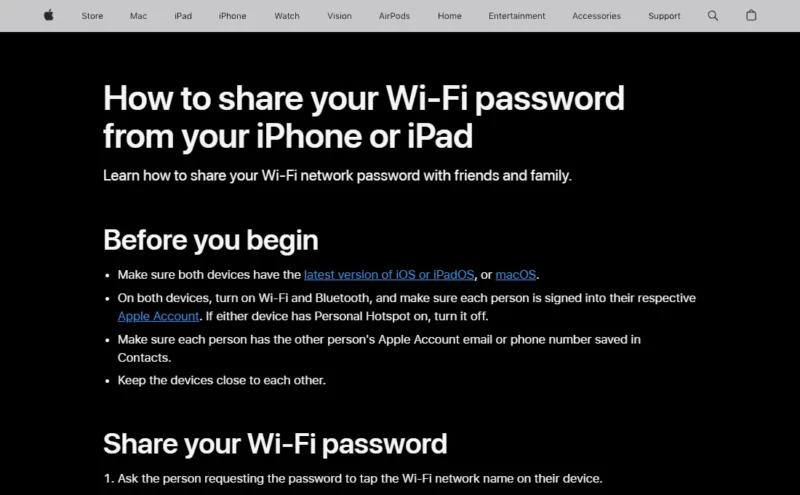
Sharing from a Mac works the same way. Apple’s Passwords User Guide for Mac says to keep your Mac unlocked and on the network, then click Share Password when the message appears.
How to share Wi-Fi from iPhone to Android or a Windows PC
Apple’s nearby prompt only goes to an iPhone, iPad or Mac. For anyone else, use a QR code or copy the password.
Show a Wi-Fi QR code from your iPhone
Apple says that in iOS 18 and later, the Passwords app can find, copy and share Wi-Fi passwords. From the iPhone User Guide:
- Open the Passwords app.
- Tap Wi-Fi. You may need to tap the sidebar button first to see your categories.
- Tap your Wi-Fi network. If you’re connected, its name appears at the top.
- Tap Show Network QR Code and let your guest scan it with their phone.
Copy the password instead
In the Passwords app, tap your network, tap the Password field, then tap Copy Password. On iOS 16 or iPadOS 16.1 and later, you can also go to Settings > Wi-Fi, tap the Info button next to your network, and tap the Password field. Apple’s saved Wi-Fi passwords page says you’ll unlock it with your passcode, Face ID or Touch ID.
Join from a Windows laptop with the QR code
Your guest doesn’t need a phone to scan the code. Microsoft says Windows devices with a camera can scan a Wi-Fi QR code:
- On the laptop, open the Camera app and select the barcode mode icon.
- Point the camera at the QR code on your iPhone.
- Select the link that appears. It opens Settings.
- Confirm that you want to add and connect to the network.
How to share Wi-Fi on Android with a QR code
Android phones show a QR code that any phone or laptop with a camera can scan. Google notes that some of these steps work only on Android 12 and up.
Pixel and most Android phones
- Open Settings and tap Network & internet > Internet.
- Make sure you’re connected to the network you want to share.
- Tap your Wi-Fi network (on a Pixel, tap the Settings icon next to it), then tap Share.
- Verify your identity if asked. Your guest scans the QR code that appears.
That’s from Android Help. Pixel Help also lists a shortcut: swipe down to open Quick Settings, tap Internet, then tap Share Wi-Fi at the bottom left.
Samsung Galaxy phones
- Open Settings and tap Connections > Wi-Fi.
- Tap the gear icon next to the network you’re connected to.
- Tap QR code at the bottom of the screen.
Samsung says your guest should hold their camera steady on the code for 2 to 3 seconds, then tap the popup to connect. If you don’t remember the password itself, our guide to finding your Wi-Fi password on Android walks through it. Guests with an iPhone can follow how to scan a QR code on iPhone.
How to find and share your Wi-Fi password on Windows 11
Microsoft documents a way to see the password on a PC that’s already connected, so you can read it out or type it on another device. From Microsoft Support:
- Open Settings and select Network & internet.
- Select Properties.
- Next to Wi-Fi network password, select Show.
For a network you’re not connected to right now, open the Manage known networks page, select the network, and select Show next to Wi-Fi network password.
If sharing your Wi-Fi password doesn’t work
- No Share Password prompt on iPhone. Check that Bluetooth is on, Personal Hotspot is off, and you have each other in Contacts. Apple says to restart both devices if the setup animation doesn’t appear, then try again.
- Still nothing. Apple’s fallback is to have the other person enter the password by hand. Copy it from the Passwords app or Settings first.
- No Passwords app. It needs iOS 18 or later. On iOS 16 or iOS 17, use Settings > Wi-Fi and the Info button instead, or update your iPhone.
- No Share or QR code button on Android. Connect to the network you want to share first. Google and Samsung both say the phone needs to be on that network.
- Laptop joins, then drops off. See our fix for Wi-Fi that keeps disconnecting on Windows 11.
Give holiday guests a guest network
If you host a lot of people, consider a separate network for them. The FTC says many routers let you set up a guest network with a different name and password. That means fewer people have your main Wi-Fi password, and if a guest’s phone has malware without them knowing, it won’t get onto your primary network and your devices. You can then share the guest network with any method above.
Treat the QR code like the password. Samsung notes that Wi-Fi QR codes aren’t encrypted, so anyone who gets a photo of the code can work out your password. Show it on your screen rather than posting a picture of it.
Frequently asked questions
Can I share my Wi-Fi password from an iPhone to an Android phone?
Yes. On iOS 18 or later, open Passwords, tap Wi-Fi, tap your network and tap Show Network QR Code. The Android user scans it. You can also tap Copy Password and send it.
Why isn’t my iPhone showing the Share Password option?
Apple says both devices need Wi-Fi and Bluetooth on, Personal Hotspot off, each other’s Apple Account email or phone number in Contacts, and to be close together. Your iPhone also has to be unlocked and on the network. If it still fails, restart both devices.
How do I share Wi-Fi from my phone to a laptop?
Show a Wi-Fi QR code on your phone. On a Windows laptop with a camera, open the Camera app, switch to barcode mode, scan the code and confirm in Settings. Otherwise, copy the password and type it on the laptop.
Is it safe to share my Wi-Fi password with guests?
The FTC suggests a guest network with its own name and password, so fewer people have your main password and a guest’s infected device stays off your primary network.