
The best GTA 6 settings are mostly on your console and TV, not in the game. Rockstar hasn’t announced a performance mode, and the game was reported to run at 30 FPS on PS5 and Xbox Series X|S. So turn on HDR and calibrate it, put your TV in Game Mode (ALLM), and turn off TV extras like dynamic contrast and auto brightness. Turning on 120 Hz will not make GTA 6 run faster.
Grand Theft Auto VI came out on November 19, 2026, and one of the top Google results for its settings asks why the game looks too dark. This guide covers the GTA 6 best settings you can actually control on a PS5, PS5 Pro and Xbox Series X|S, using PlayStation’s and Xbox’s own support pages. We haven’t played the game, so we don’t list its in-game menu options; we stick to what Sony, Microsoft and Rockstar have published.
Does GTA 6 have a performance mode?
Not that Rockstar has announced. Rockstar’s GTA VI Launch Updates page, last updated November 23, 2026, lists fixes for crashes, weather that didn’t change and autosave problems. It doesn’t mention any new display or frame-rate mode.
Before launch, Hardware Busters reported (August 29, 2026) that Rockstar told preview press GTA 6 runs at 30 FPS on PS5 and Xbox Series X|S, with no performance mode to switch to and no promise of one later. Treat that as a report, not a Rockstar statement, and check the Launch Updates page after each patch.
About the PS5 “Performance Mode” preset: PS5 has a system-wide preset at Settings > Saved Data and Game/App Settings > Game Presets. PlayStation says it applies only to games that offer these modes, so it can’t add a performance mode to a game that doesn’t have one.
Best GTA 6 settings on PS5
All of these live under Settings > Screen and Video > Video Output on PS5. PlayStation explains each one on its PS5 resolution and video output page.
- Resolution: leave it on Automatic. PlayStation says this picks the highest resolution your TV supports.
- HDR: pick On When Supported to keep non-HDR games and apps in SDR, or Always On to convert everything to HDR output (PlayStation’s HDR guide).
- Adjust HDR: PlayStation says it enables fine brightness adjustments and optimized HDR rendering. Run it with your TV already in the picture mode you’ll play in.
- VRR: turn it on if your TV supports it. If you see odd behavior in games, PlayStation says to turn the setting off.
- ALLM: leave it on so your TV switches to its low-latency mode while you play.
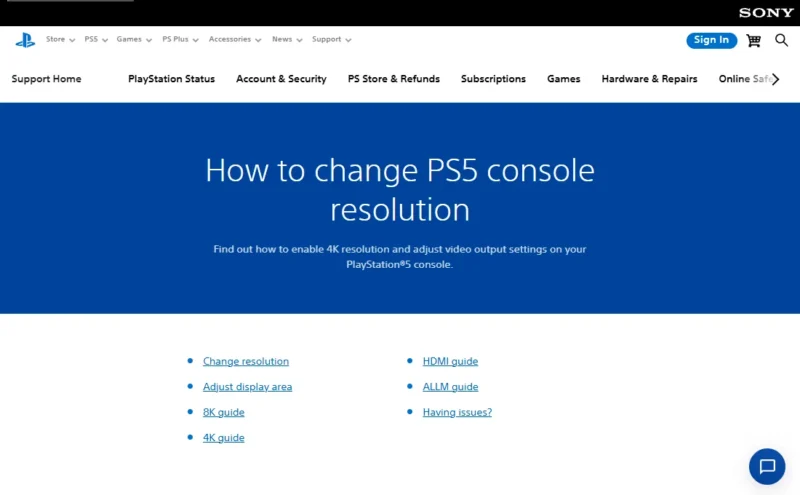
What about 120 Hz Output? PlayStation describes it as video output for TVs and “games that support 120 Hz frame rate.” It doesn’t raise the frame rate of a game that runs at 30 FPS, so it won’t change much in GTA 6. You can leave it on for other games.
What does PS5 Pro change?
The PlayStation Store listing labels GTA VI as PS5 Pro Enhanced. Sony’s PS5 Pro page says Pro enhancements are only on select games and “will vary by game,” and Rockstar hasn’t published what GTA 6 gets on Pro.
PS5 Pro owners also have Enhance PSSR Image Quality under Settings > Screen and Video > Video Output. PlayStation says it is on by default and improves image quality in certain PSSR-compatible games. Leave it on unless you notice problems.
Best GTA 6 settings on Xbox Series X|S
On Xbox, press the Xbox button, then go to Profile & system > Settings > General > TV & display options. Microsoft’s TV display settings page explains each option.
- Check your TV first: open 4K TV details on the same screen. It shows which 4K and HDR features your TV supports and has turned on.
- Calibrate HDR: select Calibrate HDR for games. Microsoft says to adjust your TV’s HDR settings while the TV is in HDR mode, which this app puts it in.
- Allow auto low-latency mode: turn it on. Microsoft calls it “game mode”: the TV switches modes when a game starts and switches back when you quit.
- Allow variable refresh rate: turn it on if your TV supports HDMI-VRR or AMD FreeSync. It reduces stutter and screen tearing.
- Use the right cable: Xbox Series X comes with an Ultra High Speed HDMI cable for HDMI 2.1 features. Microsoft says a different type of cable may affect video quality.
If the low-latency mode makes the picture look worse, Microsoft says you can turn it off. You’ll also see an Auto HDR option under Video modes: Microsoft says it gives some games a richer image than they were originally designed for, and not all games support it. Press the Xbox button in a game to check for the Auto HDR badge under the clock.
Best TV settings for GTA 6
Microsoft’s recommended TV settings for HDR apply to any console, PS5 included. The menu names change by TV brand.
- Turn off energy saving (also called power saving or eco mode) so brightness stays consistent.
- Set HDR brightness to maximum (backlight, OLED light or peak luminance) to get the full HDR range.
- Turn off auto brightness (light sensor or ambient light detection).
- Turn on local dimming if your TV has it, for deeper blacks.
- Turn off dynamic contrast and similar extras unless the picture looks too dull.
- Use a warm color temperature (Warm1, W10 or Normal) and the same setting in SDR and HDR.
- Keep sharpness low. Extra sharpness can add halos around bright edges in HDR.
PS5 vs Xbox: where each setting lives
| Setting | PS5 (Settings > Screen and Video > Video Output) | Xbox Series X|S (Settings > General > TV & display options) |
|---|---|---|
| HDR on/off | HDR: Always On or On When Supported | Video modes (Allow HDR10) |
| HDR calibration | Adjust HDR | Calibrate HDR for games |
| Low-latency game mode | ALLM | Allow auto low-latency mode |
| Variable refresh rate | VRR (plus Apply to Unsupported Games) | Allow variable refresh rate |
| 120 Hz | 120 Hz Output | Refresh rate (under Display > Resolution) |
| Check what your TV supports | Information for the Connected HDMI Device | 4K TV details |
Picture looks wrong? Try these fixes
- HDR looks washed out: Microsoft notes that low-latency mode turns off some TV processing, which can make HDR colors look washed out. Re-run HDR calibration in Game Mode, then raise the TV’s HDR brightness.
- Screen flickers on PS5: PlayStation suggests setting Video Transfer Rate to -1 or -2 in Video Output. This limits 4K 120 Hz output.
- Stutter or tearing with VRR: if the picture goes through a soundbar or AV receiver, Microsoft says VRR may cause display issues; connect the console straight to the TV, or turn VRR off.
- Picture cut off at the edges on PS5: go to Settings > Screen and Video > Screen > Adjust Display Area.
- The game crashes or freezes: that’s not a display setting. See our GTA 6 crashing fixes.
Controller and accessibility settings
The PlayStation Store listing says GTA VI supports DualSense vibration and trigger effects, and lists 30 accessibility features. To see them on PS5, PlayStation says to open the game’s hub from PlayStation Store, then press the triangle button to view the accessibility features. System-wide options are under Settings > Accessibility.
Add Being Tricky on Google:
Still setting up? Check how much space GTA 6 needs, and if you were hoping for a PC version, read is GTA 6 on PC.
Frequently asked questions
Is there a 60 FPS mode in GTA 6?
Rockstar hasn’t announced one. Its Launch Updates page (November 23, 2026) lists bug fixes only, and pre-launch reports said the game runs at 30 FPS on PS5 and Xbox Series X|S.
Should HDR be on or off for GTA 6?
On, if your TV supports HDR. Then calibrate it: Adjust HDR on PS5, or Calibrate HDR for games on Xbox, with your TV in the picture mode you play in.
Does 120 Hz make GTA 6 smoother?
No. PlayStation says 120 Hz output is for games that support a 120 Hz frame rate. It doesn’t raise the frame rate of a 30 FPS game.
Is GTA 6 better on PS5 Pro?
The PlayStation Store lists it as PS5 Pro Enhanced, but Sony says enhancements vary by game, and Rockstar hasn’t said what changes on Pro.
Why does GTA 6 look so dark?
Usually the TV is still in an energy-saving mode or HDR isn’t calibrated. Turn off energy saving and auto brightness, set HDR brightness to maximum, then re-run the console’s HDR calibration.